
How to Install V9 Game on Android (Step-by-Step Guide)
Installing an APK file for the first time can feel confusing, especially if you’ve only ever installed apps directly from the Google Play Store. This guide walks you through every step of the V9 Game APK installation process on Android — from enabling the right permission to opening the app for the first time.
This guide is for anyone who has already downloaded the V9 Game APK and wants to install it correctly without running into errors. Whether you’re on Android 7, Android 10, or Android 13, the process is slightly different depending on your version. We cover all of them here.
The steps in this guide are based on testing performed by Sara, a member of our editorial team. She reviewed the process with Shakeel, another team member, across multiple Android devices and versions. Every solution in this guide was verified before being included.
Why Installing an APK Is Different from the Play Store
When you install an app from the Play Store, Android handles everything automatically. The app is verified, downloaded, and installed without any extra steps on your part.
Installing an APK file is different. You’re placing the installation file directly on your device, which means Android needs your permission to run it. By default, Android blocks this for security reasons. You need to enable one setting before the installation can proceed — and this guide shows you exactly how to do that.
Before You Begin: Installation Requirements
Before starting the V9 Game APK installation, make sure your device meets the following:
- Android version: Android 5.0 or higher is generally required. Some features may work better on Android 8.0 and above.
- Free storage space: At least 200–300 MB of free space on your device. Check under Settings > Storage before starting.
- Battery level: Charge your device to at least 30% before installing. An interrupted installation can corrupt the file.
- Complete APK file: Make sure the download finished completely. A partially downloaded APK will cause a parse error during installation.
- File manager: Some Android devices has uilt-in file manager app. If yours doesn’t have one, download a File manager by google from the Play Store before proceeding.
- Trusted source: Download V9 Game APK only from the official website or a source you trust. Downloading from random sites increases the risk of getting a modified or corrupted file.
Step 1 — Download the Latest V9 Game APK
Go to the official V9 Game website and download the latest version of the APK. Tap the download button and wait until the file has fully downloaded to your device.
Do not close your browser or navigate away mid-download. If the download gets interrupted, the file may be incomplete and the installation will fail.
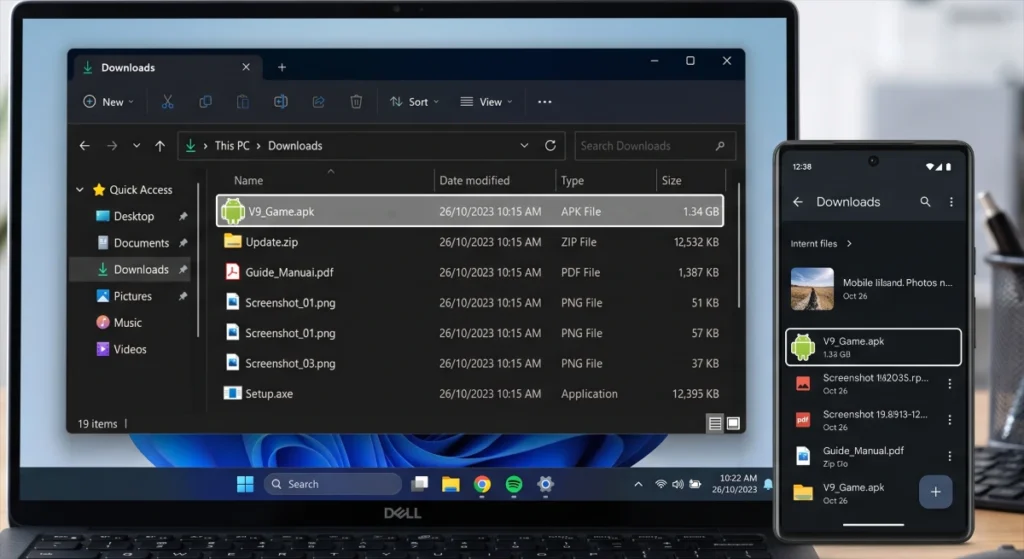
Once the download finishes, you can find the APK file in your Downloads folder. You can access this through your file manager app or your browser’s download history. as shown below screenshot.
Step 2 — Allow APK Installation on Your Android Device
This is the step most people miss or get wrong. Android requires explicit permission before it allows APK files to be installed. The exact steps depend on your Android version.
Android 7.0 and Below
- Open Settings on your device.
- Scroll down and tap Security.
- Look for the option called Unknown Sources.
- Toggle it on.
- A warning message will appear. Tap OK to confirm.
Once you enable this, Android will allow apps to be installed from sources outside the Play Store. This setting applies system-wide on older Android versions.
Android 8.0 and Above
Google changed how this permission works in Android 8.0 (Oreo). Instead of one global toggle, the permission is now tied to a specific app — usually the browser or file manager you’re using to open the APK.
If you’re opening the APK from Chrome:
- Tap the downloaded APK file from Chrome’s download notification.
- Android will prompt you with a message saying Chrome isn’t allowed to install unknown apps.
- Tap Settings in that prompt.
- Enable Allow from this source.
- Navigate back and select the APK file again.
If you are installing the APK from your file manager:
- Open your file manager and locate the APK in the Downloads folder.
- Tap the file.
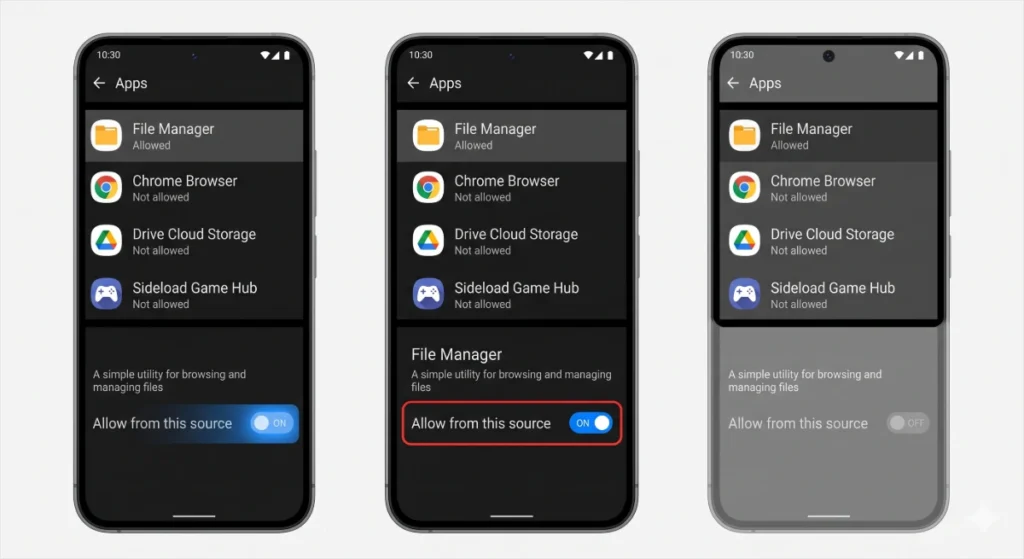
- If prompted, go to Settings > Apps > File Manager > Install Unknown Apps.
- Enable Allow from this source.
- Return to the file manager and tap the APK again.
Step 3 — Install the V9 Game APK
Once the installation permission is enabled, the actual installation process is straightforward.
- Open your device file manager and find the downloaded V9 APK in the Downloads folder.
- Tap the V9 Game APK file.
- An installation screen will appear, listing the permissions the app requests. Review them briefly.
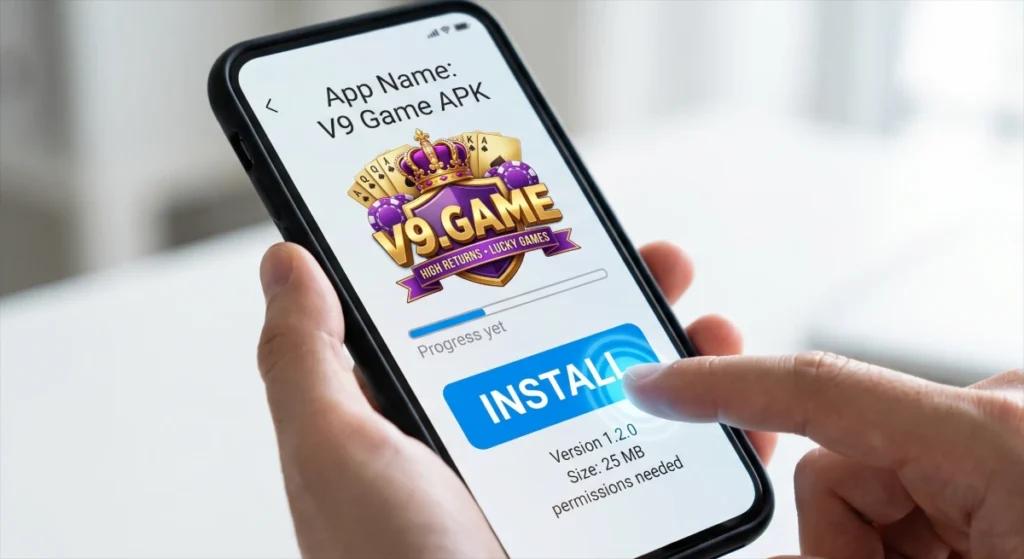
- Press Install at the bottom of the screen.
- Wait for the installation to complete. This usually takes 10–30 seconds depending on your device.
- Once done, tap Open to launch V9 Game right away, or tap Done to close and open it later.
Verify the APK Before Installing
Before tapping Install, it’s worth taking a few seconds to verify the file.
- Check the file name: It should read something like
V9Game_v[version].apk. If it has a strange name or random characters, re-download from the official site. - Check the file size: A complete APK is typically between 50 MB and 200 MB. If the file is only a few KB, the download didn’t finish properly.
- Check for duplicates: If you’ve downloaded the file more than once, you may have multiple copies in your Downloads folder with names like {V9 Game.apk(1)} Delete duplicates and use the latest one.
- Delete and re-download if unsure: It’s faster to download again than to troubleshoot a corrupt installation.
Common Installation Problems and How to Fix Them
Sara ran into several installation issues during her testing. Below are the problems she encountered and what actually fixed them.
Parse Error
A parse error usually means the APK file is either corrupted, incomplete, or not compatible with your Android version.
Sara reproduced this error by intentionally interrupting a download midway. When she tried to install the partial file, Android threw a parse error immediately. The fix was simple: delete the incomplete APK and download a fresh copy from the official site. Once the full file was in place, the installation went through without issues.
If you get a parse error on a file you believe is complete, also check whether your Android version meets the app’s minimum requirements.
App Not Installed
This error usually has one of three causes:
- An older version is already installed. If you have a previous version of V9 Game on your device, Android may refuse to overwrite it. Try uninstalling the older version first, then install the new APK.
- The APK is corrupted. Delete the file and download it again from a trusted source.
- Your device isn’t compatible. Some APKs are built for specific processor types (ARM vs. x86). If V9 Game was downloaded for a device type that doesn’t match yours, installation will fail. Download the correct version for your device if separate builds are offered.
Installation Blocked
If you see a message saying the installation was blocked, it means the “Install Unknown Apps” or “Unknown Sources” permission hasn’t been enabled yet. Go back to Step 2 of this guide and follow the instructions for your Android version. Make sure you’re enabling the permission for the correct app — the one you used to open the APK file.
Insufficient Storage
If Android says there isn’t enough space, you’ll need to free up storage before continuing.
- Delete apps you no longer use.
- Move photos and videos to cloud storage or a computer.
- Clear cached data under Settings > Storage > Cached Data.
Once you’ve freed up space, restart the installation. Sara found that restarting the device after clearing storage helped Android register the newly available space before attempting the installation again.
App Keeps Crashing After Installation
If V9 Game installs but crashes immediately when you open it, try the following in order:
- Restart your device. A simple reboot clears temporary issues that can interfere with newly installed apps.
- Check your Android version. If your device is running an older version of Android that V9 Game doesn’t support, the app may crash on launch.
- Clear the app cache. Go to Settings > Apps > V9 Game > Storage > Clear Cache, then try opening the app again.
- Reinstall the latest APK. If none of the above works, uninstall V9 Game and install the newest version of the APK from scratch.
Troubleshooting Guide
Use this table to quickly identify and fix your issue:
| Problem | Likely Cause | What to Do |
|---|---|---|
| Parse Error | Incomplete or corrupted APK | Delete file, re-download from official source |
| App Not Installed | Old version conflict or corrupted file | Uninstall old version, re-download APK |
| Installation Blocked | Permission not enabled | Enable “Install Unknown Apps” for your file manager |
| Not Enough Storage | Low device storage | Free up space, restart device, try again |
| App Crashes on Open | Cache issue or outdated APK | Restart device, clear cache, or reinstall |
| Install Button Greyed Out | Permission not granted | Grant “Install Unknown Apps” to the specific app you’re using |
| Download Stops at 99% | Unstable internet connection | Use a stable Wi-Fi connection and re-download |
During her testing, Sara noted that most installation failures she encountered came down to two things: an incomplete download or a missing permission. Fixing either one usually resolved the issue within a couple of minutes.
Safety Tips Before Installing APK Files
Installing APKs from outside the Play Store is safe as long as you take a few precautions.
- Download only from the official V9 Game website. Avoid downloading APKs from forums, file-sharing sites, or third-party app stores you don’t recognize.
- Avoid modified APKs. Files labeled as “modded,” “hacked,” or “cracked” may contain malware or spyware. Only install the original APK.
- Keep Android updated. Security patches in Android updates protect your device from known vulnerabilities. Don’t skip them.
- Read the permissions the app requests. Before tapping Install, briefly review the permissions. If a simple game asks for access to your contacts or microphone with no clear reason, that’s worth questioning.
- Don’t leave “Unknown Sources” permanently enabled. After finishing the installation, you can go back to Settings and turn off the permission. It’s a minor step, but it adds a layer of protection for your device.
How to Update V9 Game Without Losing Data
When a new version of V9 Game is released, you can usually update it without losing your progress or account data.
- Download the latest V9 Game APK from the official website.
- Tap the new APK file and go through the installation steps as normal.
- If the new version is compatible with the installed one, Android will update the app in place without removing your data.
In some cases — particularly when there’s a major version change — you may need to uninstall the existing app first. If that’s required, back up any important account information (such as your login credentials or linked accounts) before uninstalling.
If you’re unsure whether your data will carry over, check the V9 Game website or official community channels for update notes before proceeding.
How to Uninstall V9 Game
If you need to remove V9 Game from your device, the process is the same as uninstalling any other app.
- Open Settings.
- Go to Apps (or Application Manager, depending on your device).
- Find and tap V9 Game in the app list.
- Tap Uninstall.
- Confirm when prompted.
Once uninstalled, you can also delete the original APK file from your Downloads folder if you no longer need it. This frees up storage space.
Frequently Asked Questions
Conclusion
Installing V9 Game on Android is a simple process once you know what to expect. The key steps are: download the complete APK file from a trusted source, enable the installation permission for your Android version, and follow the on-screen prompts to finish the install.
This guide was put together based on hands-on testing by Sara, who installed the APK across multiple Android versions and documented the issues that came up along the way. Shakeel reviewed the process and helped verify which solutions consistently worked. The troubleshooting advice in this guide reflects what we observed during real testing.
If you follow each step carefully and run into a problem, the troubleshooting section above covers the most common issues and how to fix them. Take your time with each step, and the installation should complete without any trouble.